
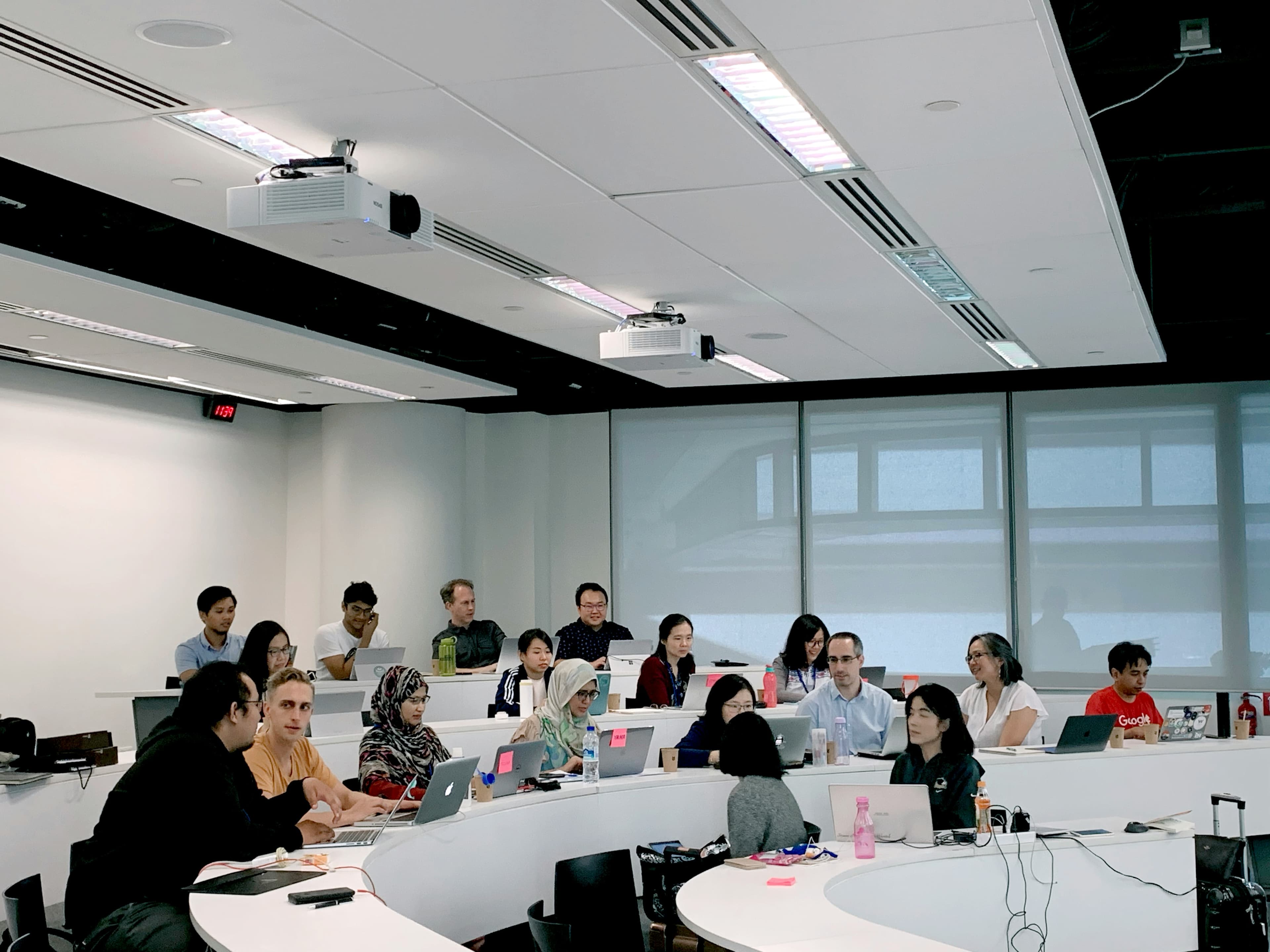
The Real Problem: Not Everyone Has a Phone in Hand
QR codes are a fantastic way to join a poll -- when you have a phone ready. But in some of the settings where live polling matters most, the audience isn't holding a phone. They're behind a laptop.
Think about the most common scenarios:
- Classrooms and lectures: students have laptops open for notes, slides, and assignments. Their phones are in bags or face-down on the desk.
- Corporate trainings and workshops: everyone is following along in a shared doc, a codebase, or a training platform. Pulling out a phone to scan a code on screen is an extra, noticeable step.
- Zoom and video calls: the QR code lives inside the shared-screen window they're already staring at. Trying to scan a code off your own monitor with your own phone is awkward at best.
- Webinars and virtual conferences: attendees are on laptops at home. The phone might be in another room entirely.
The Fix: A Permanent Channel Handle
Starting today, every PollQR presenter can claim a permanent channel handle. Your audience types it at pollqr.com and lands directly in your current live poll. No QR reader, no app, no session code to remember.
The handle is yours for good. Claim #profmurch once, and it works for every poll you run this semester, next year, and beyond. Announce it in your syllabus, your Zoom invite, your webinar email -- it stays the same.
How a Channel Works
Pick a handle -- something short and memorable that identifies you, not any single poll. Professor Murch uses #profmurch. A sales trainer might use #trainerdemo. A company might claim #acme-allhands for its recurring town halls.
Once you've claimed it, tell your audience:
- “Go to pollqr.com and type #profmurch”
What Your Audience Sees
- One poll open: the voting screen loads directly. First question appears in about 2 seconds.
- Multiple polls open (up to 5 at a time): they get a lightweight chooser with each poll's title. Tap one to vote, tap Back to channel to switch.
- No poll open yet: a waiting screen tells them the presenter hasn't started anything yet. The URL stays /c/<your-handle>, so they can sit there and refresh if they want -- or just wait, since the page polls for state on a cadence you control.
- Handle not found (typo, unclaimed): they land on a friendly page that explains what PollQR channels are and invites them to explore -- instead of a generic 404.
Channels and QR Codes Work Seamlessly Together
This is important: channels don't replace QR codes -- they complement them. The same poll is reachable both ways at the same time, and you don't have to choose.
Every live poll you create still has its QR code, and that QR code still points at the same voting experience. What's new is that the same poll is also reachable via your channel URL. Both paths land your audience in identical territory with identical votes going to identical results. It genuinely doesn't matter which one a given person uses.
That's the whole point. In any real audience, some people have phones out and some don't. Instead of forcing everyone through the same entry point, just announce both:
- “Scan the QR code on screen, or go to pollqr.com and type #acme-allhands.”
Especially Useful on Zoom and Hybrid Calls
Zoom is where the laptop problem is most obvious. Everyone is sitting in front of a camera, usually on the same laptop they're attending from. Asking them to pull out a phone, unlock it, open the camera app, and scan a code off their own screen is a small but real friction -- and in practice, a lot of people just skip it.
With channels, you paste your channel URL into the Zoom chat once at the start of the session. Participants click it, land on your live poll, and vote without ever leaving the Zoom window. If someone joins late, they can scroll up in chat or just type #yourhandle at pollqr.com. The QR code is still right there on screen for the minority of people who prefer it.
The same pattern works for Google Meet, Microsoft Teams, Webex, and any other video call where you can share a link in chat.
Claiming Your Handle
- Go to Settings → Your Channel Handle in your PollQR dashboard
- Type your preferred handle -- 3 to 30 characters, letters, numbers, hyphens, or underscores
- We check availability as you type and flag reserved names (#admin, #support, etc.)
- Pick your update cadence (how often your audience's screen checks for new polls -- 2s for fast switching, 30s to minimize server load)
- Save. You'll see your new channel URL, a copy button, and a persistent bar at the top of every live-polls page that keeps your handle one click away
Running Multiple Polls at Once
Channels support up to five open polls at the same time. This is a real UX shift for certain formats -- office hours where different breakout rooms each want their own poll, trainings with a warm-up question and an exit survey running in parallel, or events where you want a running sentiment check alongside the main content poll.
When you have more than one poll open, participants who visit your channel URL get a chooser. Each poll is a card with its title and question count. Tap to enter, Back to channel to leave. The URL never changes, so students in a lecture stay on /c/profmurch for the whole class while the content on screen rotates as polls open and close.
A Quick Note on Security
Try It With Your Next Audience
Claim a handle, start a poll, and announce both ways: the QR code on screen and #yourhandle at pollqr.com. For mixed rooms, for Zoom calls, for classrooms of laptop-first students -- you'll see noticeably higher participation, because the laptop users finally have a path that doesn't involve digging around for a phone.
Channels and QR codes are the same door with two entrances. Use whichever your audience prefers, or just offer both and let them pick. The vote goes to the same place either way.
We'd love to hear what handle you claim and how you use it. Email us at support@pollqr.com.