
Why Traditional Q&A Fails
You know how the last ten minutes of most talks go. The speaker asks if there are any questions. The same handful of hands go up. One person rambles. One asks a question that's really a long comment. And the question half the room was actually wondering about doesn't get asked, because nobody wants to raise their hand in front of 500 strangers to ask it.
The open-mic format selects for whoever is willing to grab the mic, which is rarely the same as whoever has the best question.
So we built Audience Q&A with Upvoting -- a new activity type in PollQR, sitting alongside Surveys and Live Polls.
How It Works
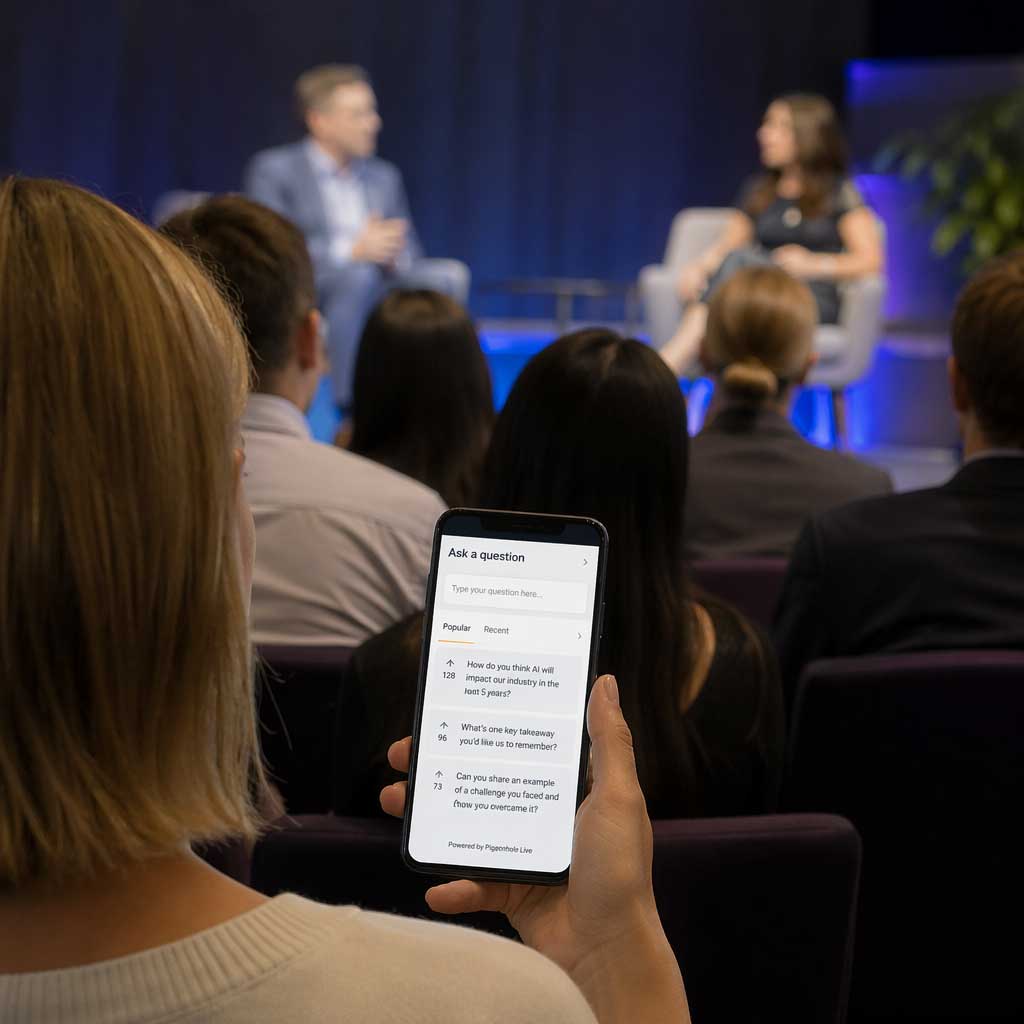
Create a Q&A session from the dashboard and put the QR code -- or your channel code -- on screen. Attendees scan or type and see a simple page: a box to submit a question, and a list of everyone else's approved questions sorted by votes. They upvote the ones they want the speaker to answer. You see incoming submissions in a moderator queue and approve, reject, or mark them answered. The speaker has their own projection-friendly screen showing the top-voted question, and can click any other question to focus on it instead.
That's the loop: audience submits and ranks, you screen, the speaker answers.
The three views
- Attendee view (on a phone): a text field to submit, the approved questions sorted by votes, one-tap upvote on each. No signup, no app, no email. Attendees can upvote as many questions as they want; tapping again removes their vote.
- Moderator view (on the organizer's laptop): tabs for Pending, Approved, Answered, and Rejected; approve/reject/answered buttons on every row; a switch to turn moderation on or off; a one-click CSV or JSON export of the full transcript.
- Presenter view (on the projector): dark, high-contrast, projection-friendly. The top-voted question auto-highlights and scales up. Click any question to focus on it out of order. Mark Answered to fade it away. Refresh interval is adjustable so the screen updates at a cadence the speaker likes.
Moderation is on by default
New sessions start with moderation on. Submissions land in a pending queue, and only approved questions appear in the audience feed and on the presenter screen. That's the safe default for a high-stakes keynote with a famous guest, a sensitive all-hands, or any room where you'd rather not risk something embarrassing showing up behind the speaker.
But moderation costs you a person: someone has to screen every question, fast, while the event is running. For a 20-person internal workshop or a friendly classroom, that overhead isn't worth it. So you can flip moderation off mid-session. When you do, every pending question is promoted to approved in one go -- no half-state where some attendees see one list and others see another.
Why upvoting matters
Upvoting is the part that makes the format work. The shy person who had the best question doesn't need to raise a hand. They type it, and if it resonates, thirty other people upvote it, and it lands at the top of the speaker's screen.
A few practical details:
- One vote per attendee per question, dedupped by a browser fingerprint. Tapping again removes the vote, so people can change their mind.
- Attendees can upvote as many different questions as they want. There's no strategic reason to restrict it -- upvoting everything doesn't change the ranking.
- Vote counts update live, so the speaker can see the list re-rank as the room's attention shifts.
- The presenter view can break out of auto mode. Click any question to focus on it; the vote count stays accurate, you just answer in your own order.
Where it fits
We built this with conference keynotes in mind, but it covers a lot more than that.
- Keynotes and fireside chats: one speaker, a big room, more demand for mic time than supply. Upvoting and moderation handle it cleanly.
- All-hands and town halls: leadership Q&A where employees want to surface real questions. Moderation gives HR a chance to screen sensitive topics, or to collapse five versions of the same question into one.
- Webinars and streamed events: remote attendees can't raise hands. Put your channel URL in the broadcast and questions flow in alongside the talk.
- Classrooms and lectures: shy students won't interrupt out loud, but they'll type. The professor can see what the room is actually confused about.
- Author talks and book events: collect questions during the event, answer the best ones from stage, and export the full list for a follow-up email or blog post.
Built for Conference Scale
One thing worth noting: this is built for rooms of thousands, not twenty. We load-tested it with 1,000 concurrent attendees polling a live session every few seconds, and the database saw about five queries per second.
Getting Started
Audience Q&A is a Pro feature. If you're already on Pro, you have it -- go to your dashboard, click Create, and pick Collect audience questions (Q&A). Give it a title, submit, and you're on the moderator page. Grab the QR code or channel URL from the presenter view and put it on screen.
If you're on Free, you can start a 14-day free trial to try it -- no card charged until the trial ends. The full feature writeup lives at /audience-qa.
If you run a Q&A you're happy with, drop us a note at support@pollqr.com. The format is new to us too, and we're still figuring out what makes a great session.